Neurosoft Information
This page provides basic information regarding the EMG hardware and software for Neurosoft systems
Please note Neurosoft systems are also known as MEGA-TMS in some parts of the world
Electricity Supply
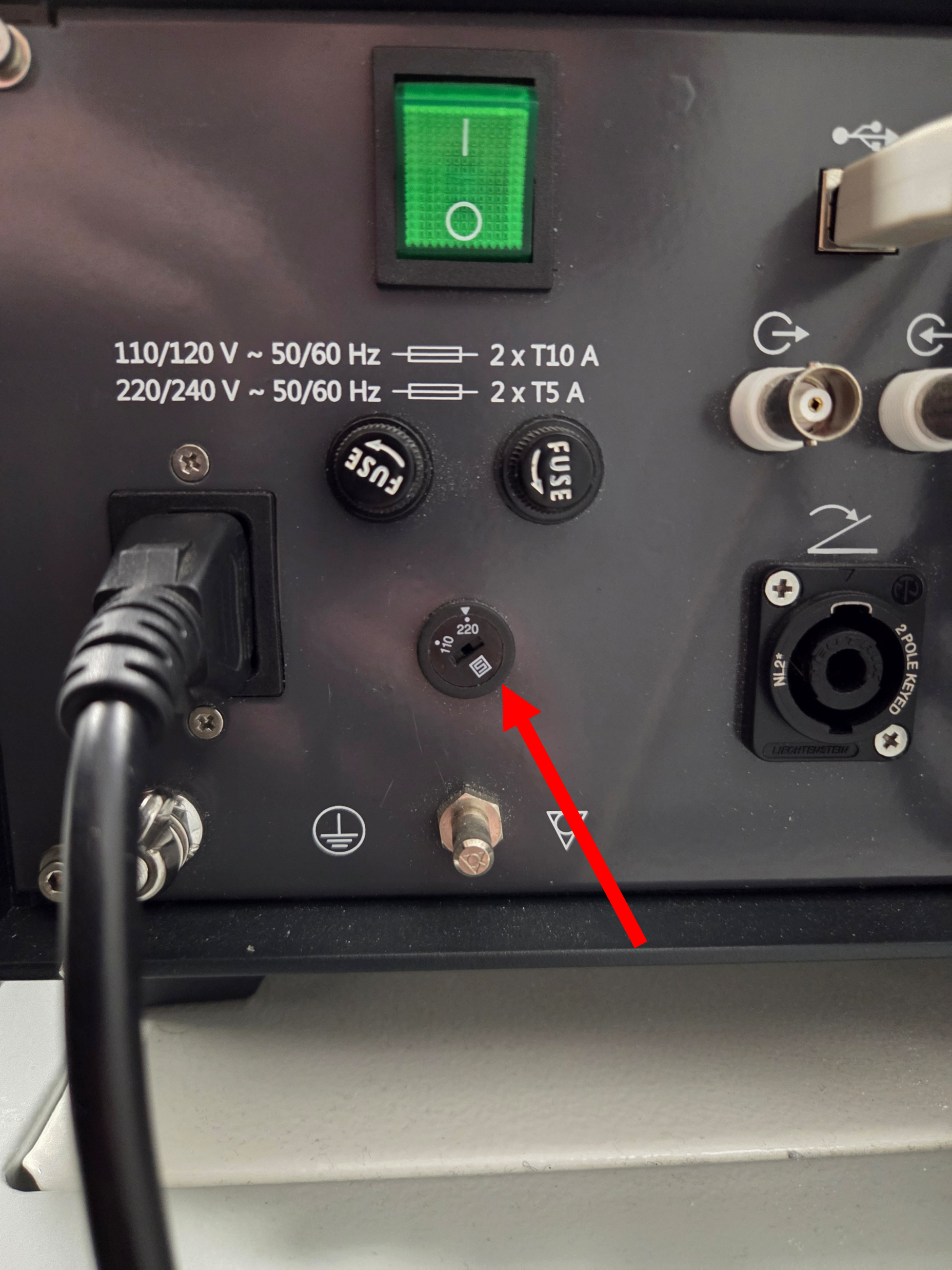
Check on the back of the TMS unit for a switch that lets you choose between 110 V or 220 V electricity supply.
Make sure this switch is set to 220 V for New Zealand. If the switch is set to 110 V you could experience issues with stimulation. The picture below shows where to find the switch on the back of the stimulator.
EMG System
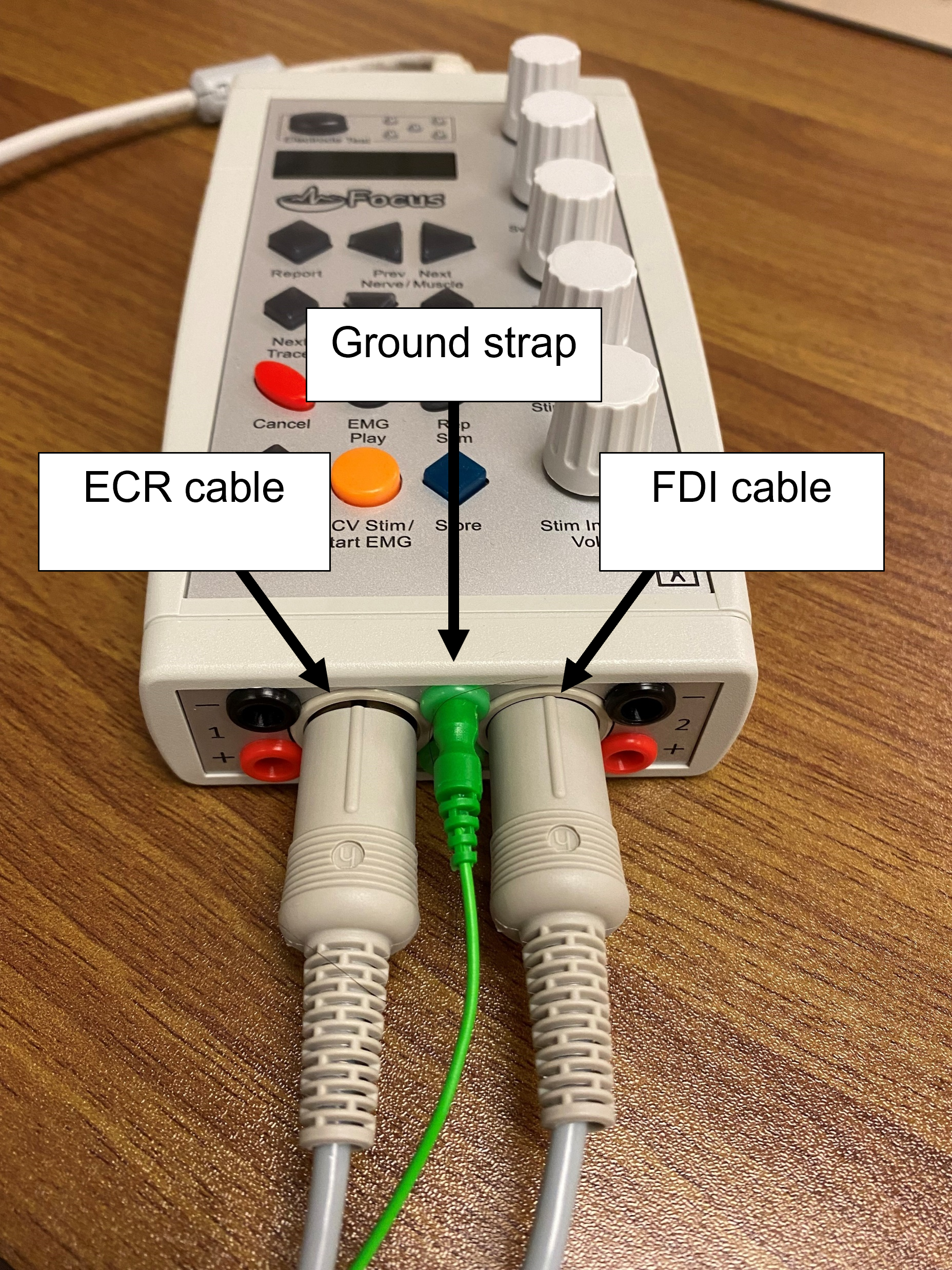
The pictures to the right show how the cables should be connected to the EMG unit.
No buttons on the EMG unit need to be used during TMS sessions.
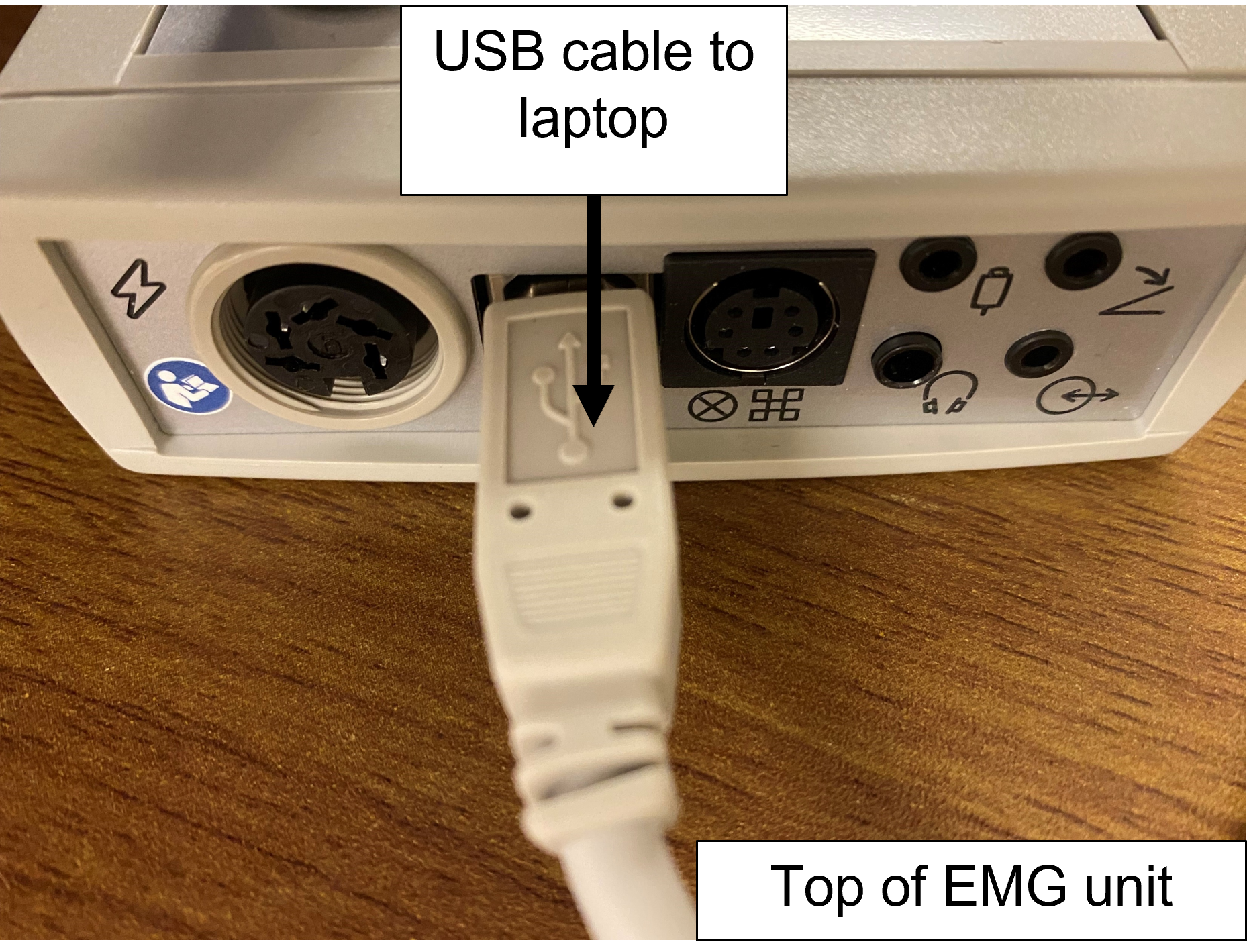
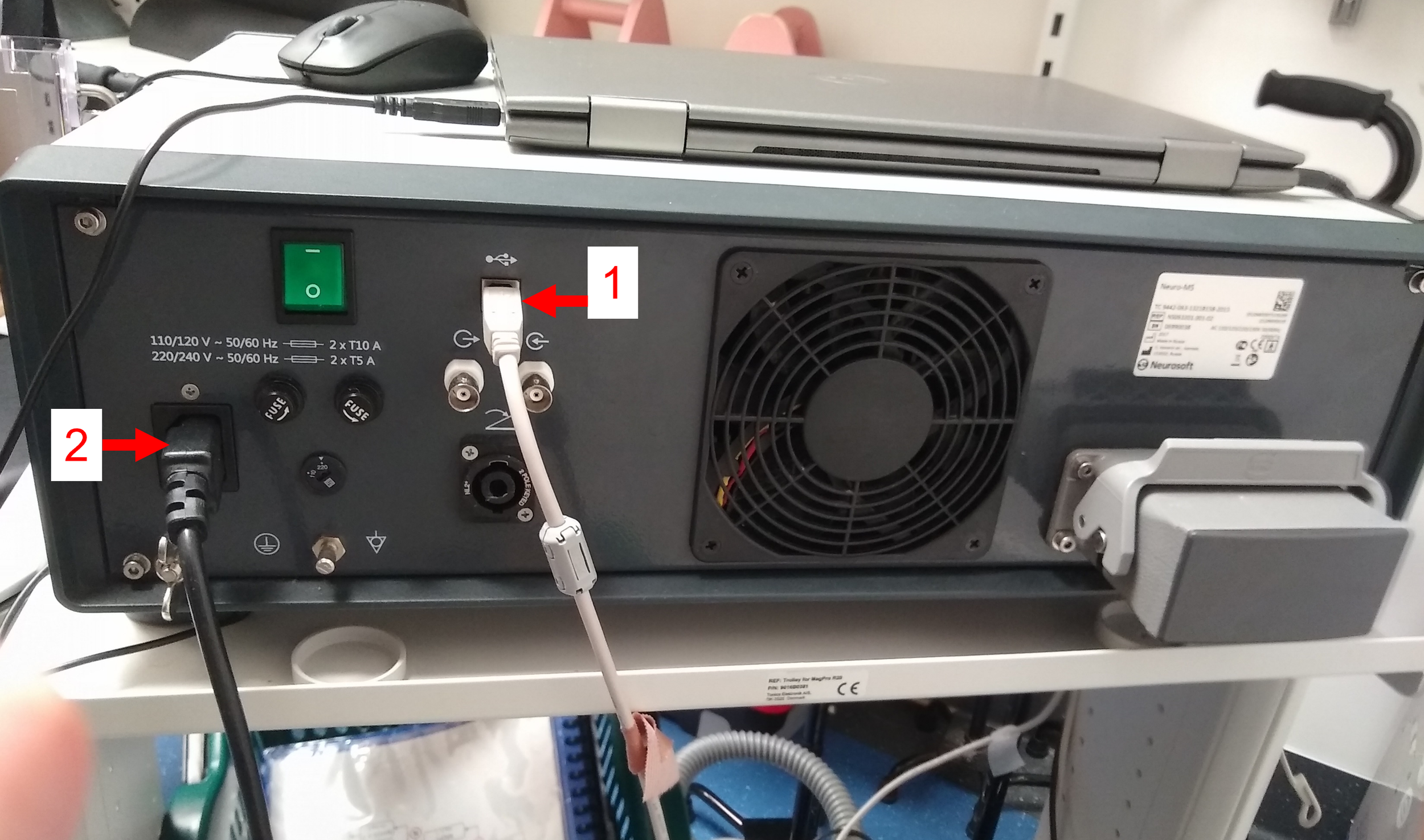
This cable connects the stimulator with the laptop. The other end of this cable should be plugged into a USB port on the laptop.
This is the power cable. The other end of this cable should be plugged into a power outlet.
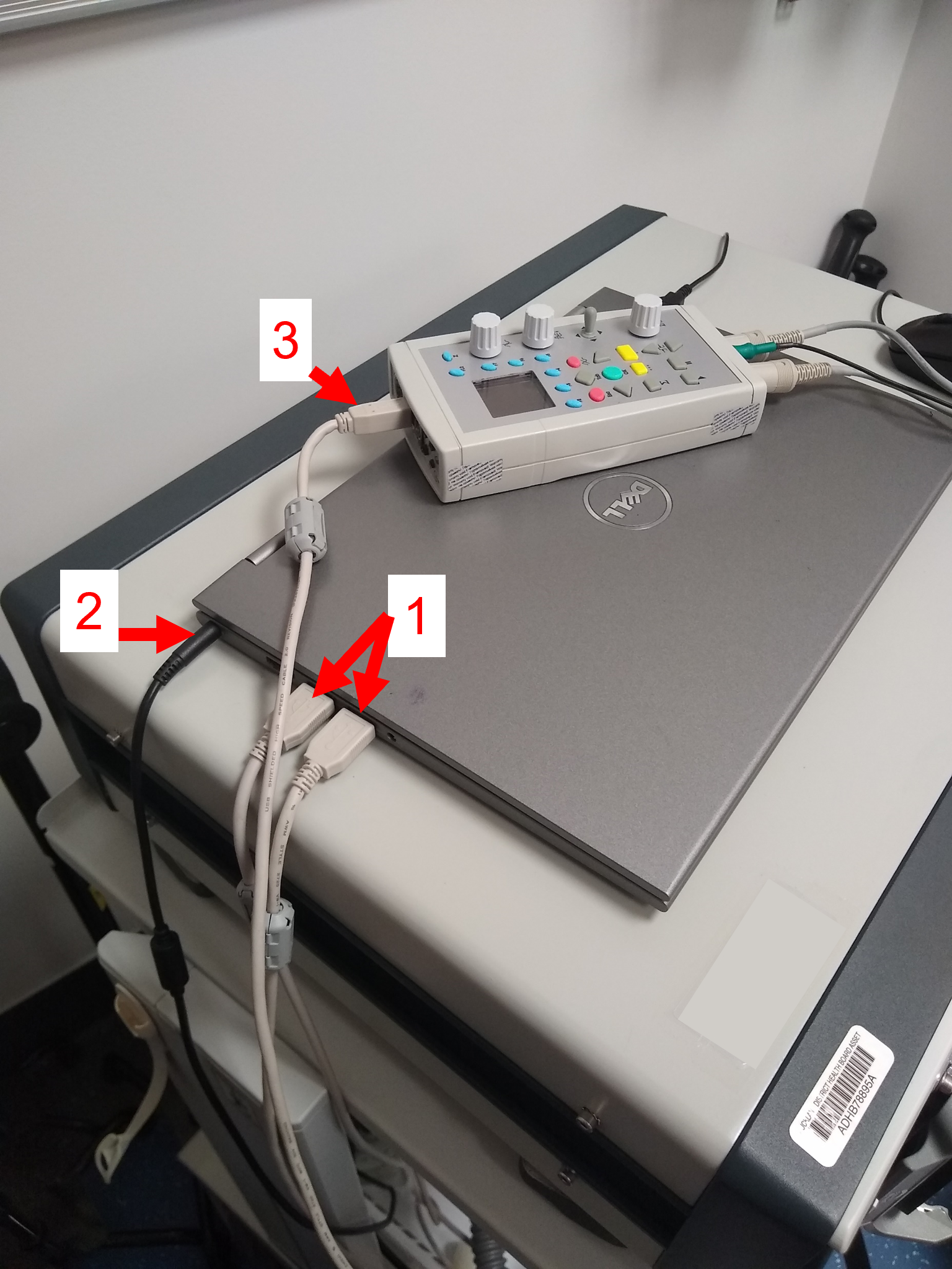
These are the USB inputs into the laptop. One of these cables will be coming from the stimulator, and one will be coming from the EMG unit indicated in (3).
This is the laptop power cable. The position of it may differ on the laptop supplied to you.
The cable connecting the EMG unit with the laptop.
Software
The pictures below explain the role of the important buttons in the Neurosoft EMG software.
Home page
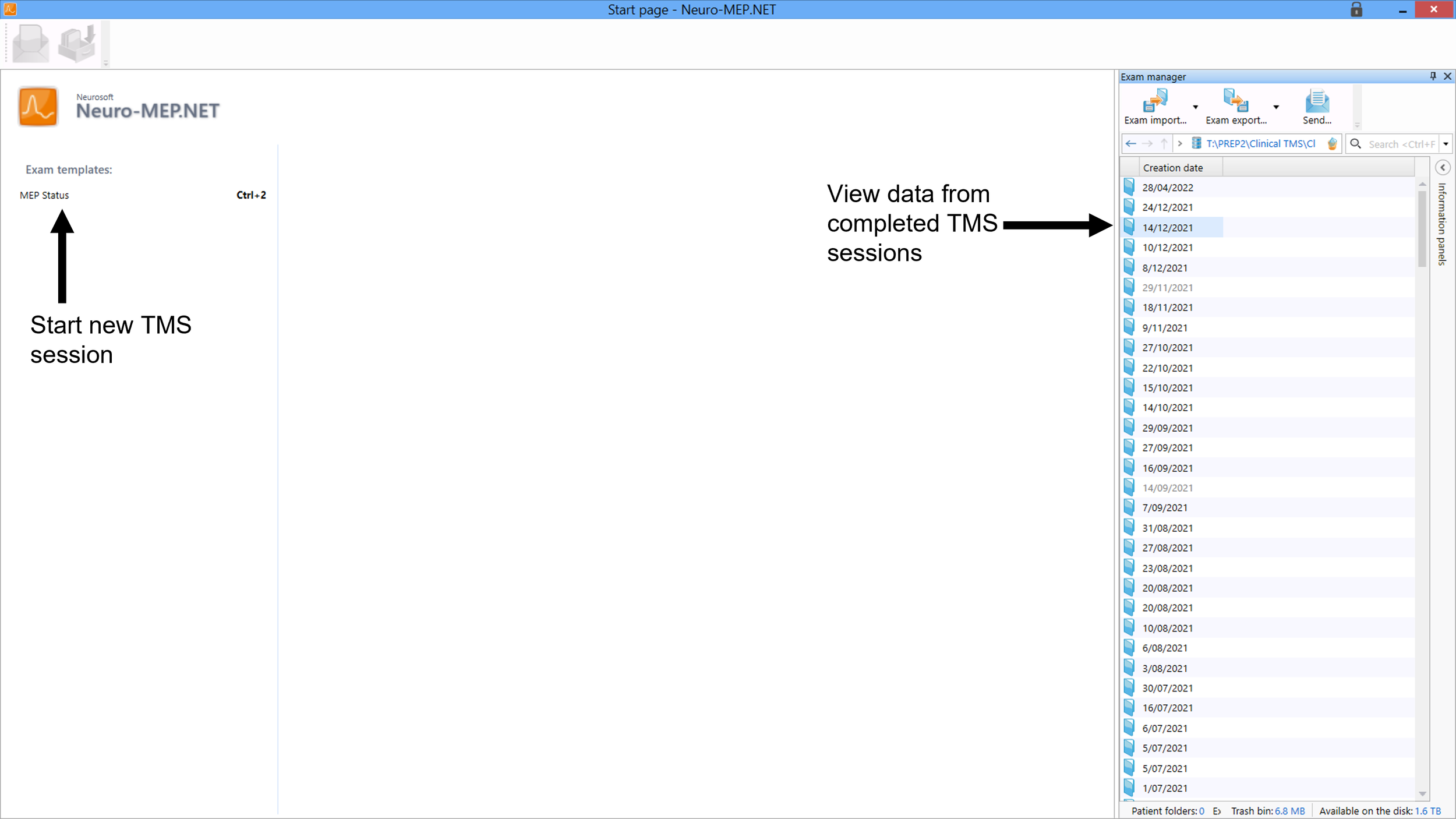
1. Pressing the “MEP status” button will start a new PREP2 TMS session and you’ll be prompted to enter the patient’s NHI. TMS sessions in the TMS software are referred to as exams.
2. Data from saved TMS sessions can be opened by double clicking them on the right side of the screen.
TMS Session Page
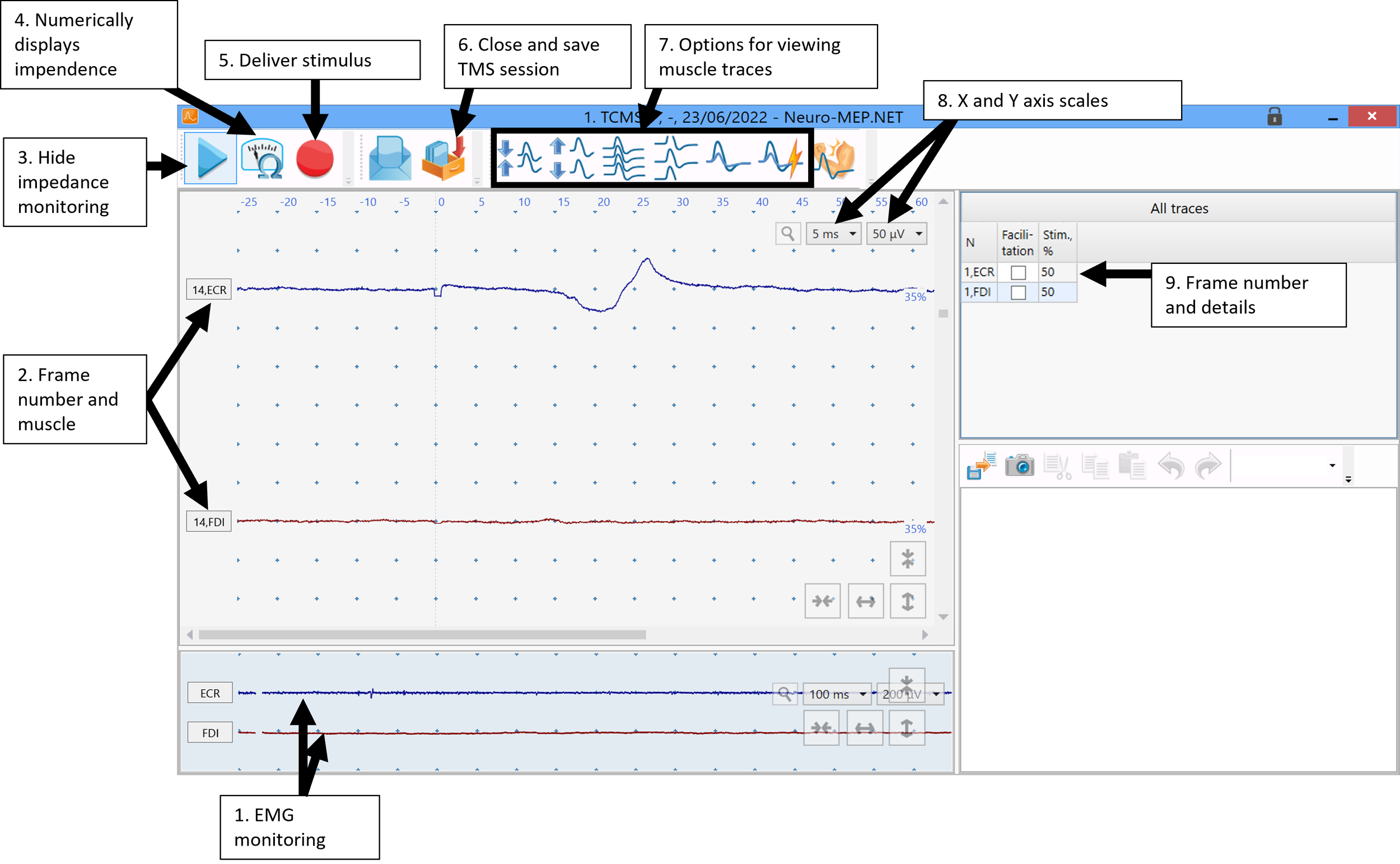
1. EMG monitoring displays EMG from both channels in real-time. Before any TMS is delivered these should be flat lines as shown in the picture, which indicates the traces are free from biological and non-biological noise. The presence of noise should also be checked throughout the TMS session by observing the EMG traces. Please see the EMG Technique module for how to determine whether noise is biological or non-biological.
2. The top blue trace shows the EMG trace for the ECR muscle, and the bottom red trace shows the FDI muscle. The number before the muscle name indicates the frame number, which in this example is frame 14.
3. Starts/stops EMG monitoring displaying at the bottom of the screen.
4. Pressing this button will show you the impedance as a numerical value for each muscle. Good impendence is indicated by a green circle.
5. This button discharges the coil and is rarely, if ever, needed.
6. This button closes the exam and gives the option of saving the current TMS session. Should only be used at the end of the TMS session.
7. These buttons provide different ways of viewing the EMG traces such as changing the distance between traces, superimposing all traces together, or viewing all traces on the same window. These buttons can be helpful for determining MEP status.
8. Used to change the X and Y axis scale if desired. By default the x-axis is set so one unit on the screen is 5 ms, and the y-axis is set so one unit on the screen is 50 microvolts. We recommend not changing the scales during the TMS session.
9. Information for each trace are shown on the right of the screen, and the most important detail is the stimulus intensity used. To see further details for every EMG trace press CTRL+U.
Traces Viewing Options
This short video summaries how changing the visualization of EMG traces in the Neurosoft software can assist with MEP status determination.
Note: A lack of familiarity with the software is one of the most common causes of incorrect MEP status determinations.
Neurosoft File Export
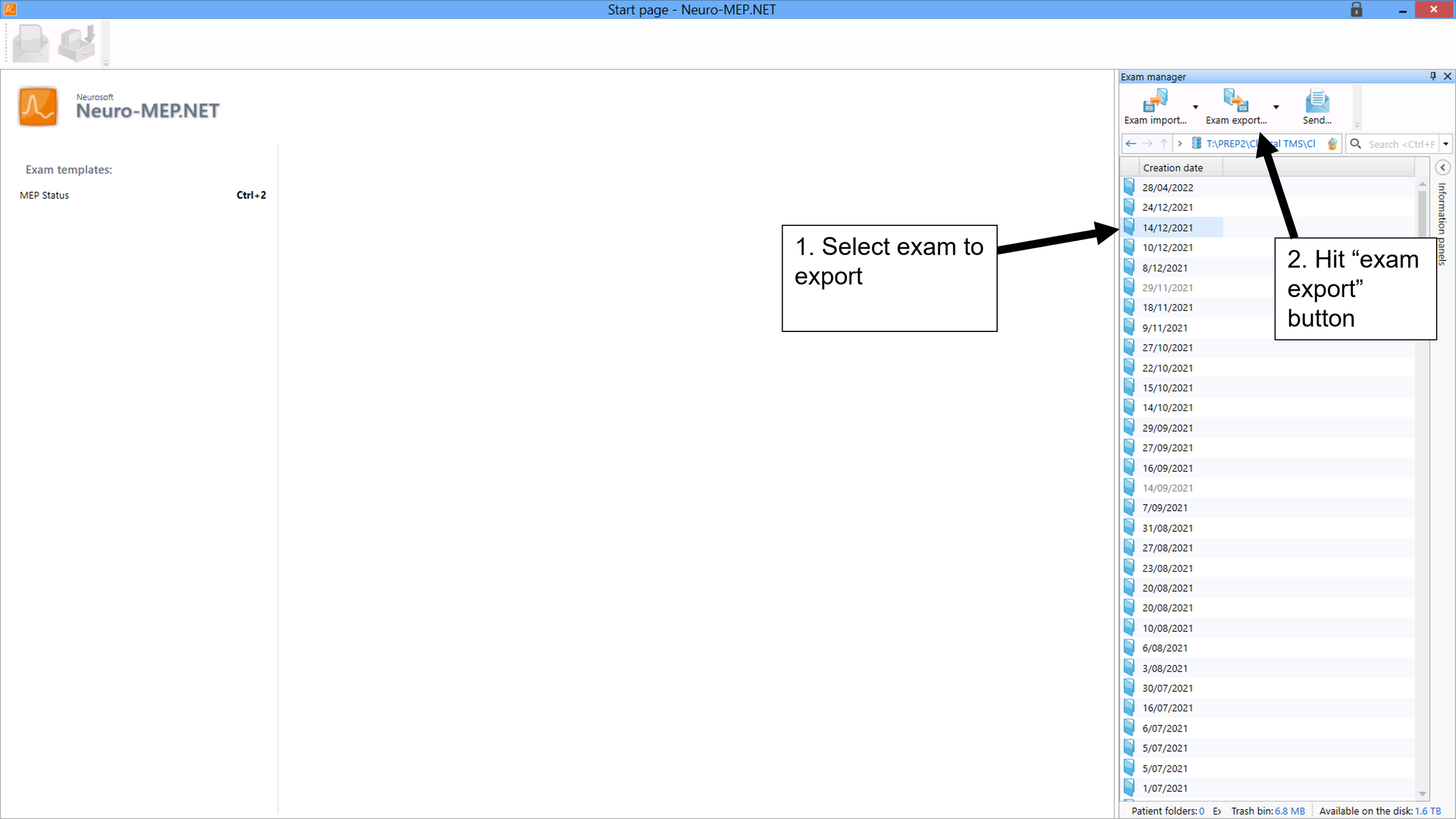
Once a TMS session is completed it should be saved and closed. If you want to export the TMS file please follow these instructions
1. Go back to the Neurosoft home screen and select the TMS dataset that you want to export. TMS datasets are called exams in the software. If there are multiple datasets select them all and export them together as this will put them all into one file.
2. Hit the “exam export” button and choose where to save the file. The data should be saved as a .NSPACK file which is the only available option.
3. The exported file will contain all the TMS traces from the session. This file can be sent via email and re-opened by anyone who has installed the Neurosoft software.